
Replenish wallet with SEPA
How To: Replenish DT Shop Wallet with SEPA
- Go to the DT Shop Wallet page
Navigate to:
https://dtshop.dtone.com/wallet/
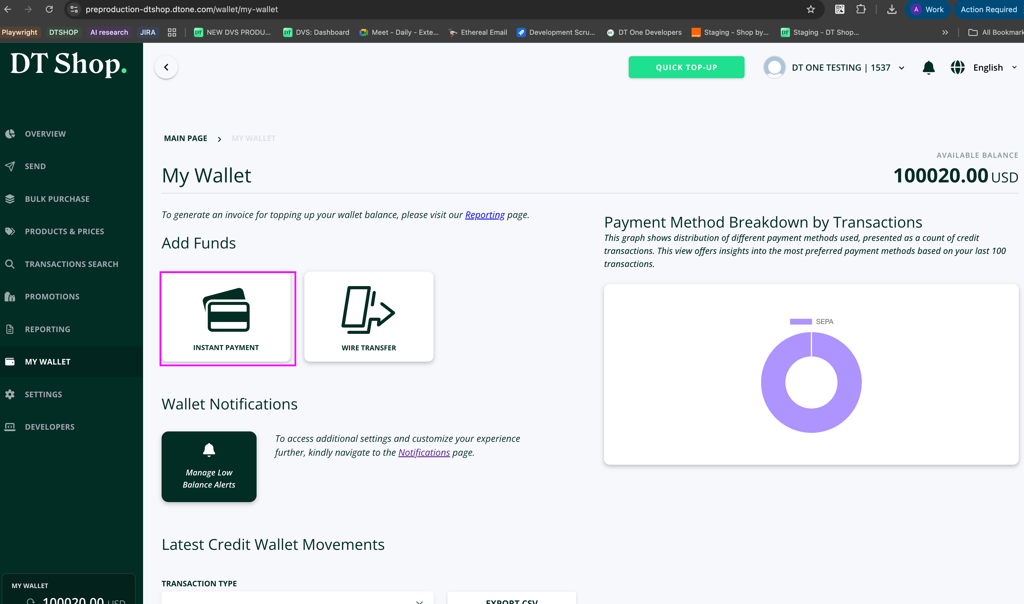
Under MY WALLET, click on INSTANT PAYMENT.
- Enter the amount to replenish your wallet
Enter the amount you want to add to your DT Shop wallet and click NEXT.
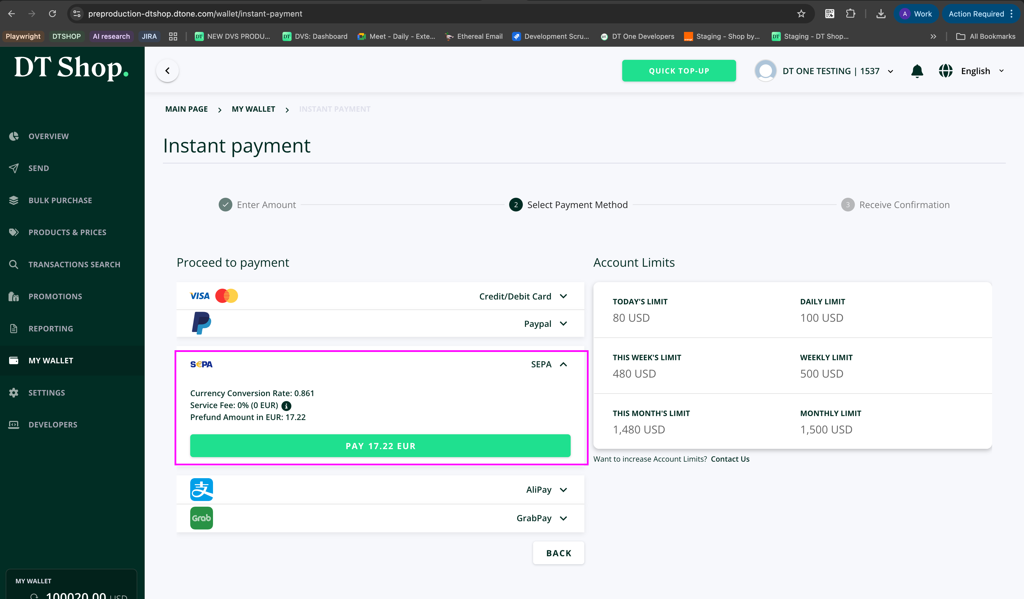
Note that DT One limits the amount of funds a customer can add to their DT Shop wallet within specific timeframes. Funding limits include:
- Today's Limit
- Daily Limit
- This Week's Limit
- Weekly Limit
- This Month's Limit
- Monthly Limit
To request an increase in your account’s funding limit, you can submit a request through the Contact Us form.
- Select SEPA as the payment method
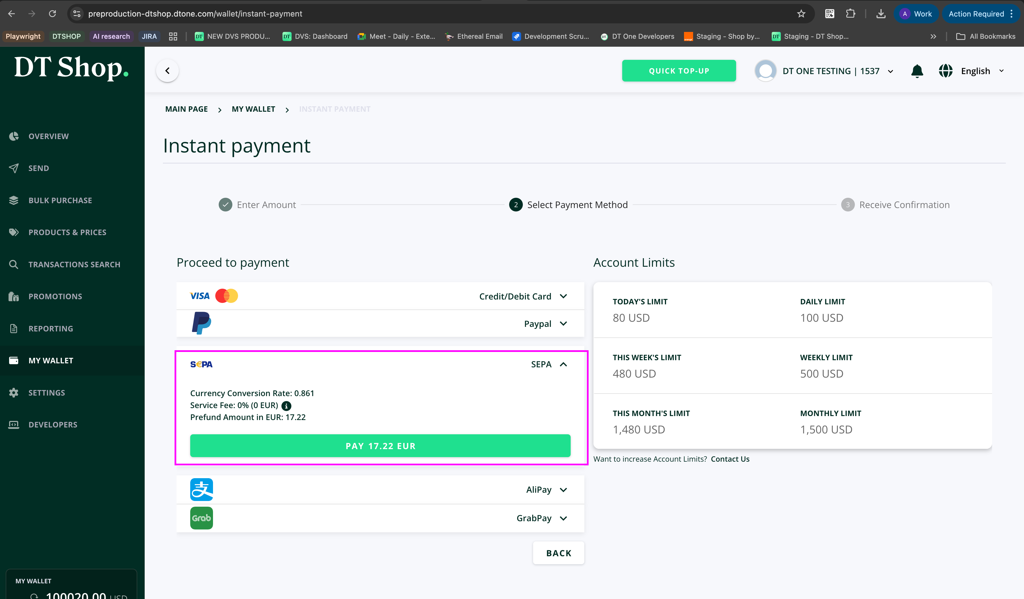
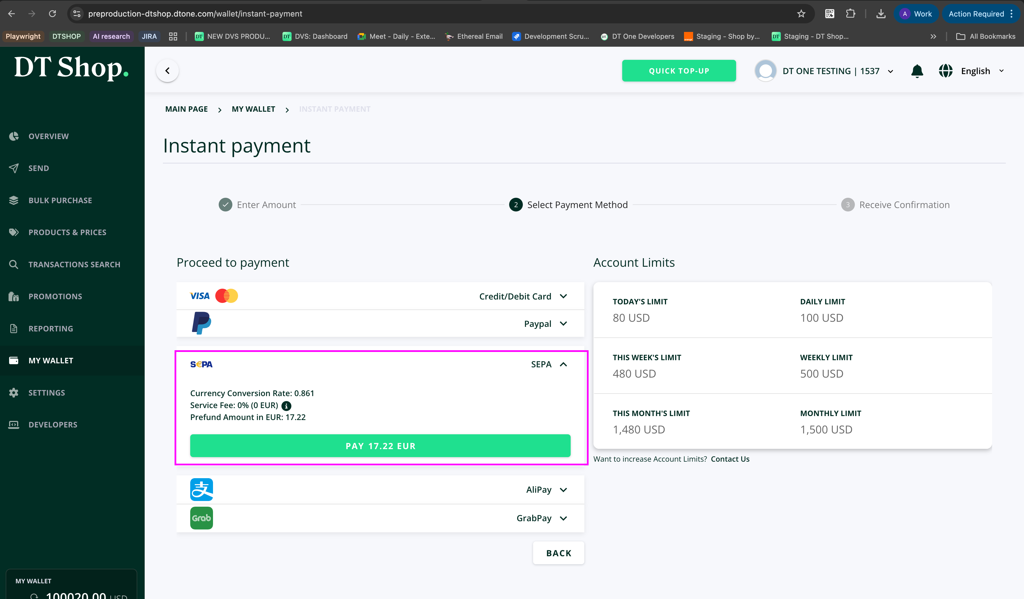
In the Proceed to Payment section, expand the SEPA option.
You will see the following information:
- Currency Conversion Rate
- Service Fee
- Prefund Amount in EUR
For SEPA payments, the service fee is 0% (0 EUR).
Click PAY to proceed.
- Enter SEPA payment details
Provide the required payment details:
- IBAN
- Name on account
- Billing address
- Country
- City
- Address
- Postal code
Confirm the details and click Pay.
By clicking Pay, you authorize the payment provider to send instructions to your bank to debit your account according to SEPA Direct Debit authorization.
- Payment confirmation
Once the payment is submitted, the system will display a confirmation message indicating that the transaction is under process.
Payment status will be updated once the payment provider completes the processing.
You will see the following details:
- Order ID
- Order Status
- Payment Status
- Transaction Amount
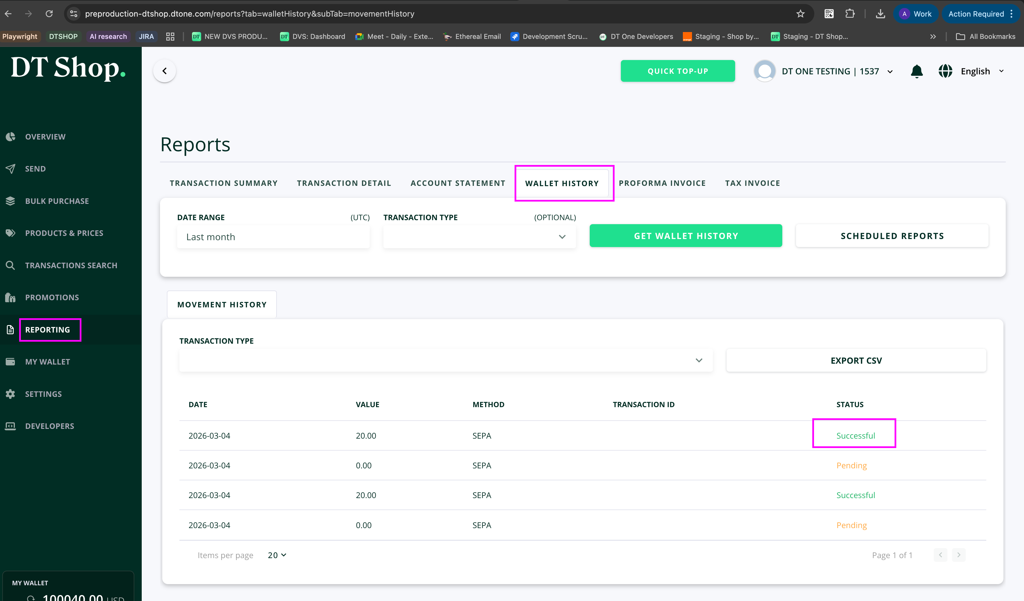
- View the transaction in Wallet History
You can view the transaction by navigating to:
Reporting → Wallet History
The transaction will appear with:
-
Method: SEPA
-
Value: Transaction amount
-
Status: Successful (once processed)
- Email confirmation
You will also receive a confirmation email at your registered email address once the payment has been successfully processed.
Updated 5 months ago