
Create and activate your DT Shop account
DT Shop Onboarding Guide
This guide walks you through the complete process of creating and activating a DT Shop account, from initial sign-up to accessing the dashboard.
Prerequisites
- Open the DT Shop login page
- Prepare a valid work email address
- Install an authenticator app, such as Google Authenticator or Microsoft Authenticator
- Keep your company details ready for registration
- Accessing DT Shop
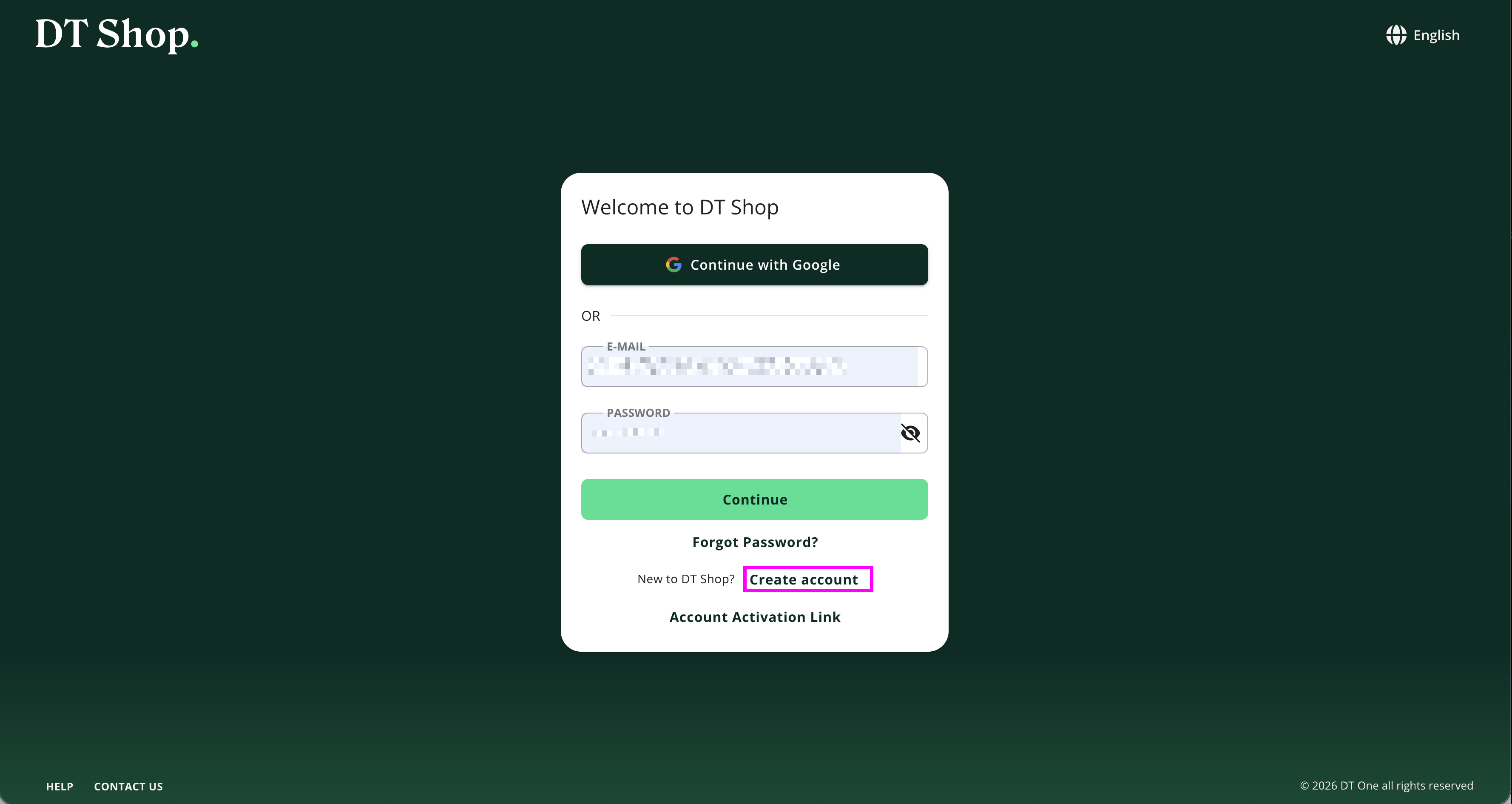
Navigate to the DT Shop platform. You will be presented with the login screen.
Available options:
Continue with Google (recommended for faster onboarding)
Email + Password login
Create account (for new users)
- Create a New Account
Click “Create account” to begin registration.
Step 1: Personal Information
Provide the following details:
First Name
Last Name
Email Address
Notes:
Ensure the email address is valid, as it will be used for verification and account communication.
This information may also be used for invoices and legal documentation.
Click “Set Password” to continue.
Step 2: Set Password
Create your account credentials:
Password
Confirm Password
Requirements:
Choose a secure password that is difficult to guess
Ensure both fields match
Click “Enter Company Information” to proceed.
Step 3: Company Information
Provide your business details:
Department
Company Name
Industry
Company Address
Country
Mobile Number
Primary Business Line
Additional requirement:
Accept Terms & Conditions
Click “Create account” to complete registration.
- Email Verification
After account creation, a verification email is sent to your registered email address.
What to do:
Open the email titled:
“DT Shop: Please verify your account”
Click “Verify account”
Notes:
The verification link expires within 48 hours
If needed, you can re-send the email from the platform
- Account Activation
Once verified, your account is activated.
You will see a confirmation screen:
“Success! Your account is now active”
Click “Sign in” to continue.
- Two-Factor Authentication (2FA) Setup
For enhanced security, DT Shop requires 2FA setup.
Steps:
Scan the QR code using an authenticator app:
Google Authenticator, Microsoft Authenticator or similar apps (iOS, Android, browser extensions).
If unable to scan:
Use the “Can’t scan it” option
Enter the generated verification code
Click “Next” to complete setup.
- First Login & Dashboard Access
After completing 2FA, you will be redirected to the DT Shop dashboard.
Key sections available:
Overview (KPIs and performance)
Send
Bulk Purchase
Products & Prices
Transactions Search
Promotions
Reporting
PIN Management
Wallet
Settings
Developers
You are now ready to start using DT Shop.
- Optional: Product Introduction
A short introductory video is available within the platform:
“How to use DT Shop”
This provides a high-level overview of platform capabilities.
Outcome
At the end of this process, you will have:
A fully verified DT Shop account
2FA-enabled secure access
Access to the main dashboard and features
Updated about 2 months ago