
Branding (White-Labelling DT Shop)
Introduction
The Branding (White-Labelling) feature allows you to customize DT Shop to reflect your organization’s brand identity. From this page, you can configure your company details, brand name, support contact, logo, and color scheme to present DT Shop as a fully branded platform.
White-labelling helps ensure a consistent and professional experience by aligning the platform’s appearance, domain, and support communication with your organization’s branding.
What is White-Labelling in DT Shop?
White-labelling in DT Shop enables you to:
- Use your own brand name and branded domain
- Display your organization’s logo and favicon
- Apply your brand colors across the platform
- Define a support email address for platform-related inquiries
Once configured, DT Shop is accessible through your branded domain, allowing you to offer digital products under your own brand identity rather than a third-party interface.
Who is this page for?
This page is intended for:
- Merchants
- Partners
- Organizations using DT Shop under their own brand
Users with access to Settings can configure and manage branding details for their white-labeled DT Shop instance.
Accessing the Branding Page
To access the Branding settings:
- Navigate to Settings
- Select White Label tab
All branding-related configurations for your DT Shop instance are managed from this page.
Brand Information
The Brand Information section defines your organization’s identity and determines how your white-labeled DT Shop is presented, including its branded domain and support contact details.
All fields in this section should reflect accurate and up-to-date information for your organization.
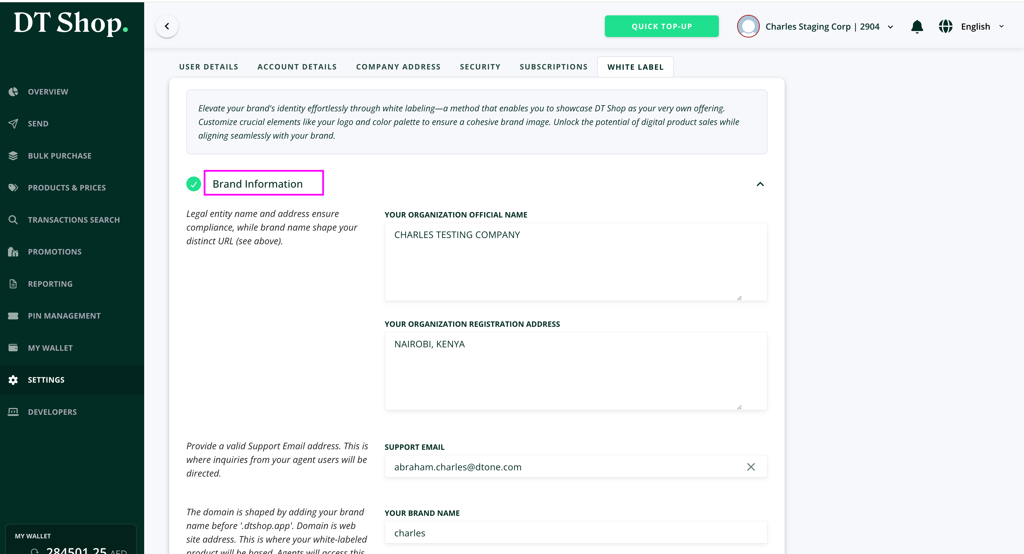
Organization Name
Field: Organization official name
Enter the legal name of your organization as registered.
This information is used for identification and compliance purposes.
Organization Registration Address
Field: Organization registration address
Provide the official registered address of your organization. This address may be used for legal, compliance, or reference purposes.
Support Email
Field: Support email
Enter a valid email address that will be used for platform-related inquiries and support communication.
Ensure that this inbox is actively monitored, as it will be the primary point of contact for users interacting with your branded DT Shop.
Brand Name
Field: Your brand name
The brand name defines your white-labeled DT Shop domain. Your domain is automatically generated using the following format:
{brand-name}.dtshop.app
For example, if your brand name is Globalesims, your DT Shop will be accessible at: globalesims.dtshop.app
Important Notes
- The brand name must be unique.
- Avoid changing the brand name frequently.
- Updating the brand name generates a new domain and disables the previously assigned domain.
Logo & Favicon
The Logo & Favicon section allows you to upload visual assets that represent your brand across the DT Shop platform. These assets help reinforce brand recognition and provide a consistent visual identity.
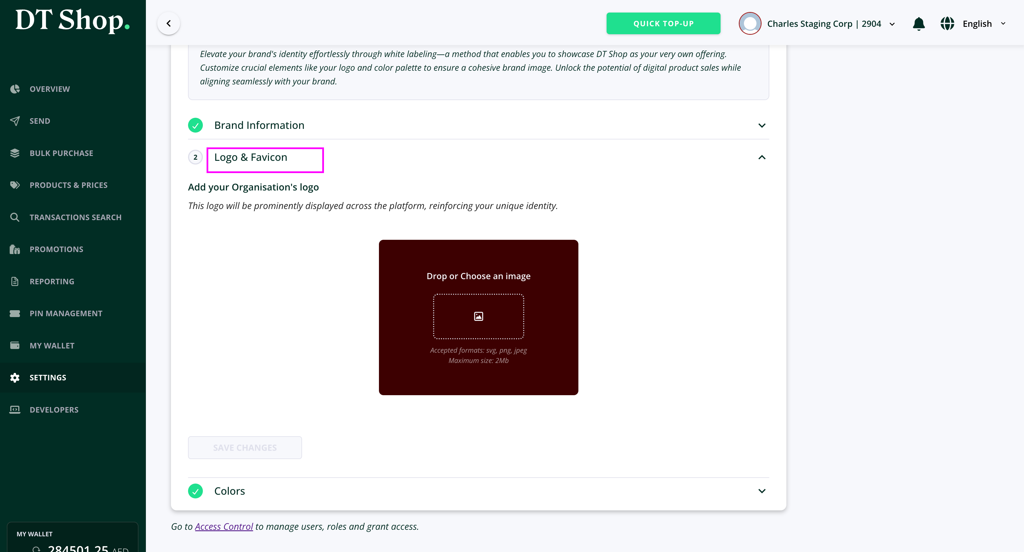
Organization Logo
Field: Add your organization’s logo
Upload your official brand logo to be displayed across the platform. This logo is used in key interface areas such as headers and navigation, ensuring your brand is clearly visible throughout the DT Shop experience.
Upload Guidelines
- Accepted formats: SVG, PNG, JPEG
- Maximum file size: 2 MB
- Recommended: Use a high-resolution logo with a transparent background for best results
To upload a logo:
- Click Drop or Choose an image
- Select a file from your device
- Confirm the upload
Once uploaded, the logo will be immediately previewed on the page.
Favicon
The favicon represents your brand in browser tabs and bookmarks. If supported, it is derived from the uploaded branding assets to maintain visual consistency.
Ensure your logo remains clear and recognizable at small sizes.
Colors
The Colors section allows you to customize the visual appearance of your white-labeled DT Shop by defining the colors used across key interface elements. These settings help ensure your platform aligns with your brand’s visual identity.
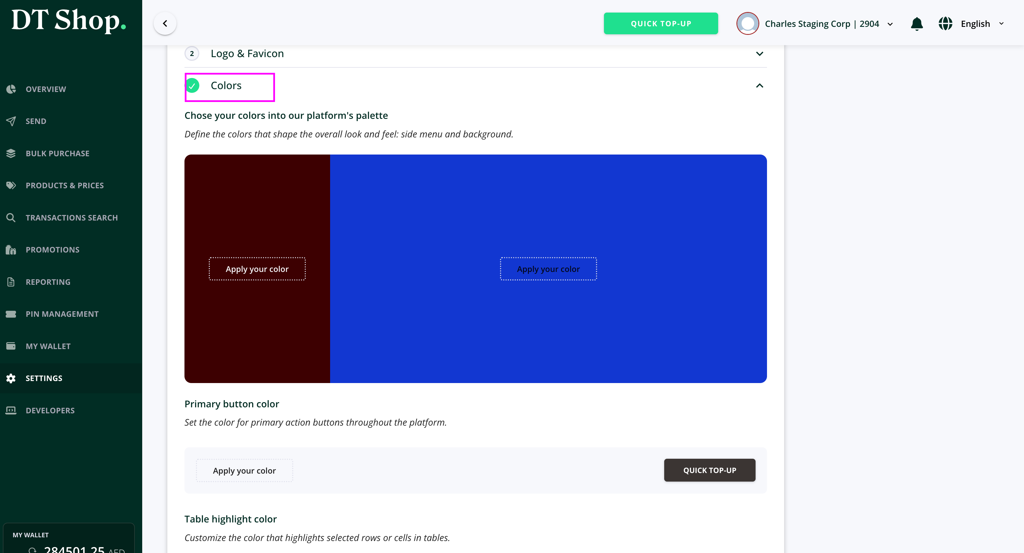
Platform Color Palette
This section controls the overall look and feel of the platform, including the side menu and background elements.
Use the color picker to select your preferred colors, then click Apply your color to preview the selection before saving.
Primary Button Color
Field: Primary button color
This setting defines the color used for primary action buttons throughout the platform, such as confirmation and submission actions.
Choose a color that:
- Aligns with your brand guidelines
- Maintains sufficient contrast for readability and accessibility
After selecting a color, click Apply your color to preview the change.
Table Highlight Color
Field: Table highlight color
This option controls the color used to highlight selected rows or cells within tables.
It helps users visually identify active or selected data.
Select a color that complements your primary palette while remaining clearly visible.
Click Apply your color to preview the highlight color.
Best Practices
- Use consistent brand colors across all elements
- Ensure adequate contrast between text and background colors
- Test button and table colors for clarity and usability
Saving Changes
All branding updates made on the Branding (White-Labelling) page are applied using a single Save changes button located at the bottom of the page.
You may configure multiple sections, such as Brand Information, Logo & Favicon, and Colors—before saving.
When you click Save changes:
- All unsaved modifications across the page are applied at once
- Updates take effect immediately
- If the Brand Name was modified, a new branded domain is generated and the previous domain becomes inactive
To avoid losing changes, ensure you save your updates before navigating away from the page.
Updated 5 months ago