
Proforma Invoice
How to Generate a Proforma Invoice in DT Shop
DT Shop provides two convenient ways to generate a Proforma Invoice:
Option 1: From The Wallet Section
- Navigate to My Wallet.
- Click on the Reporting page link. You’ll be taken to the Proforma Invoice tab
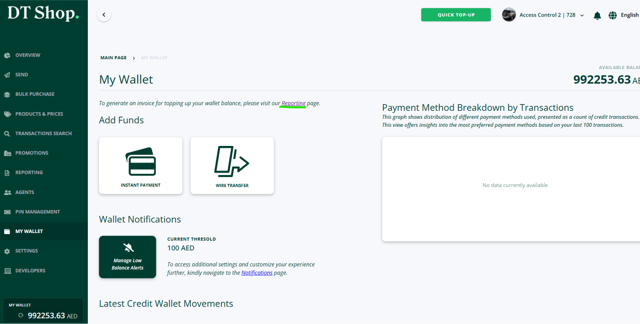
Option 2: From Reports Section
- Navigate to Reporting page using the Navigation panel
- Select the Proforma Invoice tab.
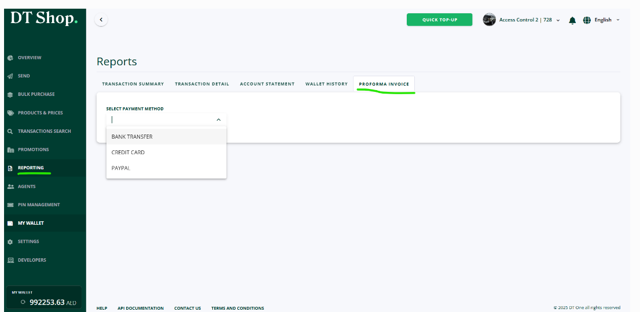
Step-by-Step: Selecting Payment Preferences
- Choose the Payment Method you want to see the Proforma Invoice
- Select either Bank Transfer or Credit Card/PayPal.
- If Bank Transfer is Selected
- Choose the Bank Account.
- Select the Payment Currency (can be different from your wallet currency, subject to FX conversion by your bank).
- Enter Invoice Details
- Invoice Date (Default is today, but can be changed).
- Purchase Order Number (Optional for internal reference).
- Internal Notes (Optional for additional details).
- Review and Confirm
- Verify all entered details, including the bank account, payment currency, and any internal notes.
- Click Get Invoice.
- Download the invoice and submit your payment for execution.
Important Note
- The list of DT One bank accounts available in DT Shop is dynamically updated based on your contracting entity that can be obtained in Terms and Conditions.
- If there is any change in your contracting entity, the available bank accounts in DT Shop will be updated automatically.
Updated about 2 months ago
Did this page help you?