
NEW! Purchase eSIM
Step - by - Step User Guide
You will only see the eSIM if this product type is included in your Pricelist. If you do not see eSIM, contact your Account Manager or [email protected] with the request to add it. You can click the CONTACT US link at the bottom of the screen
-
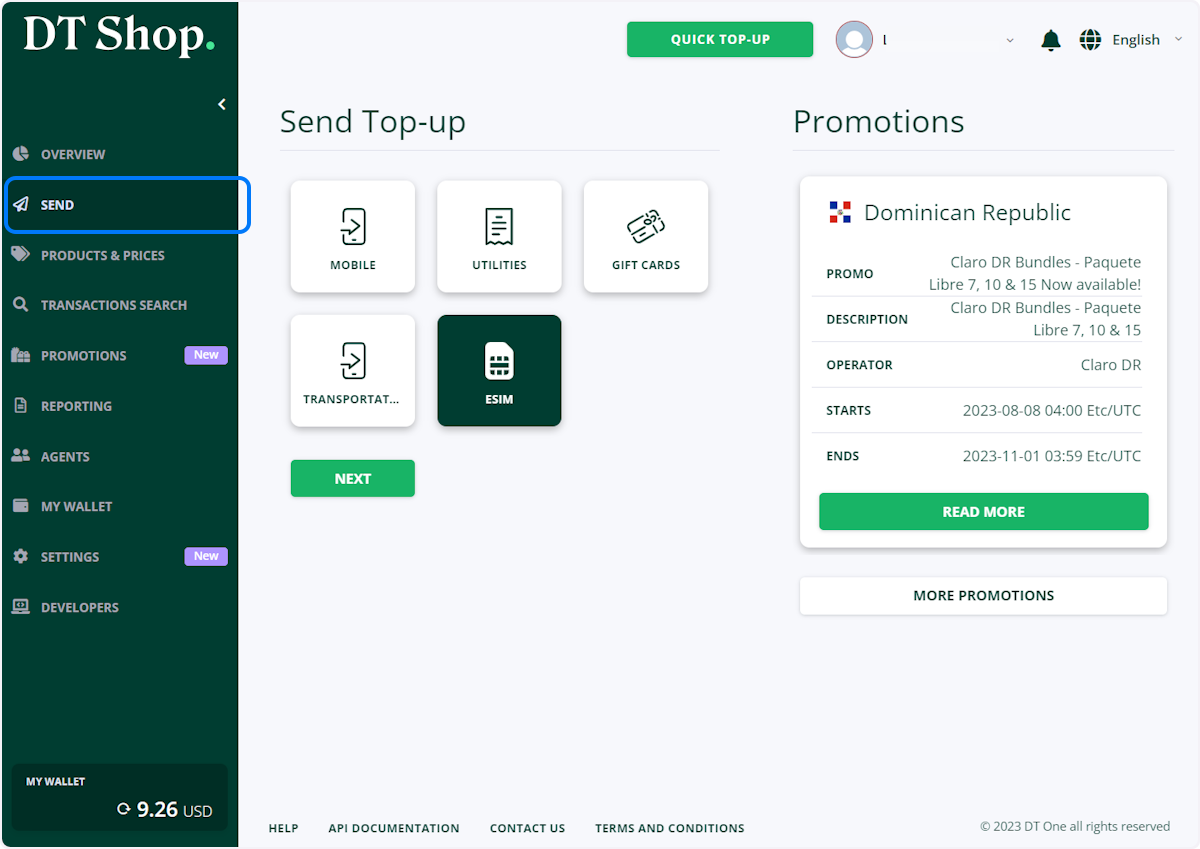
Navigate to SEND section
-
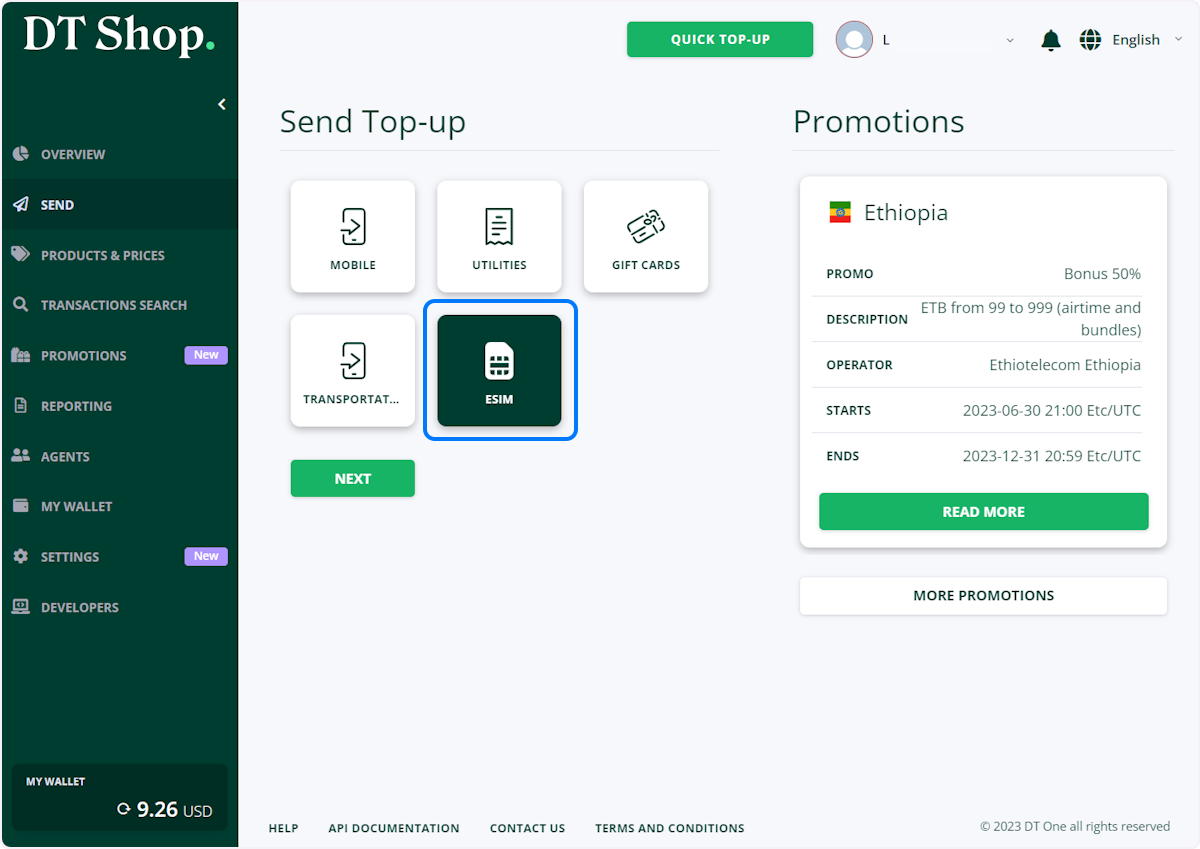
Select ESIM and click NEXT
-
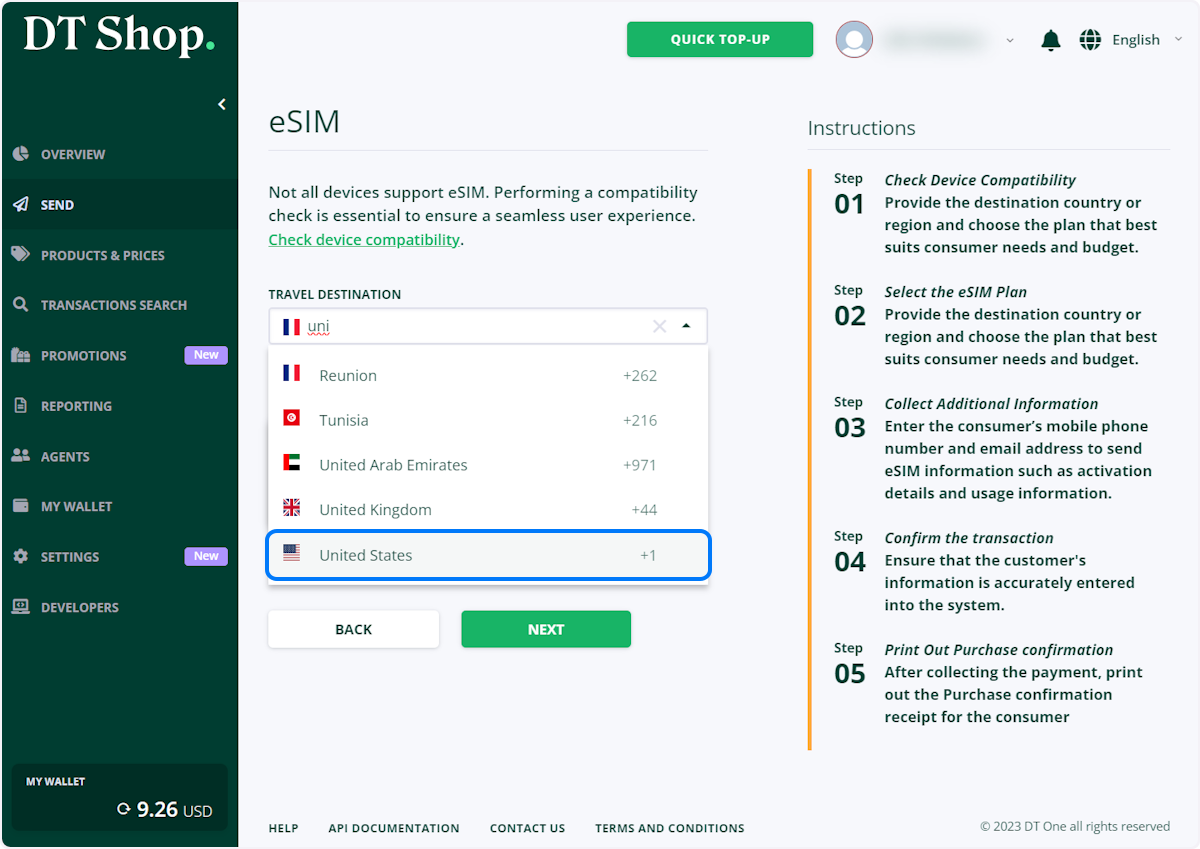
Check Device Compatibility and Select the Country of your Travel Destination
Important! If you don't see countries in the travel destination means that your account is not opted-in to receive eSIM coverage. Contact your Account Manager or [email protected] with the request to add it. You can click the CONTACT US link at the bottom of the screen
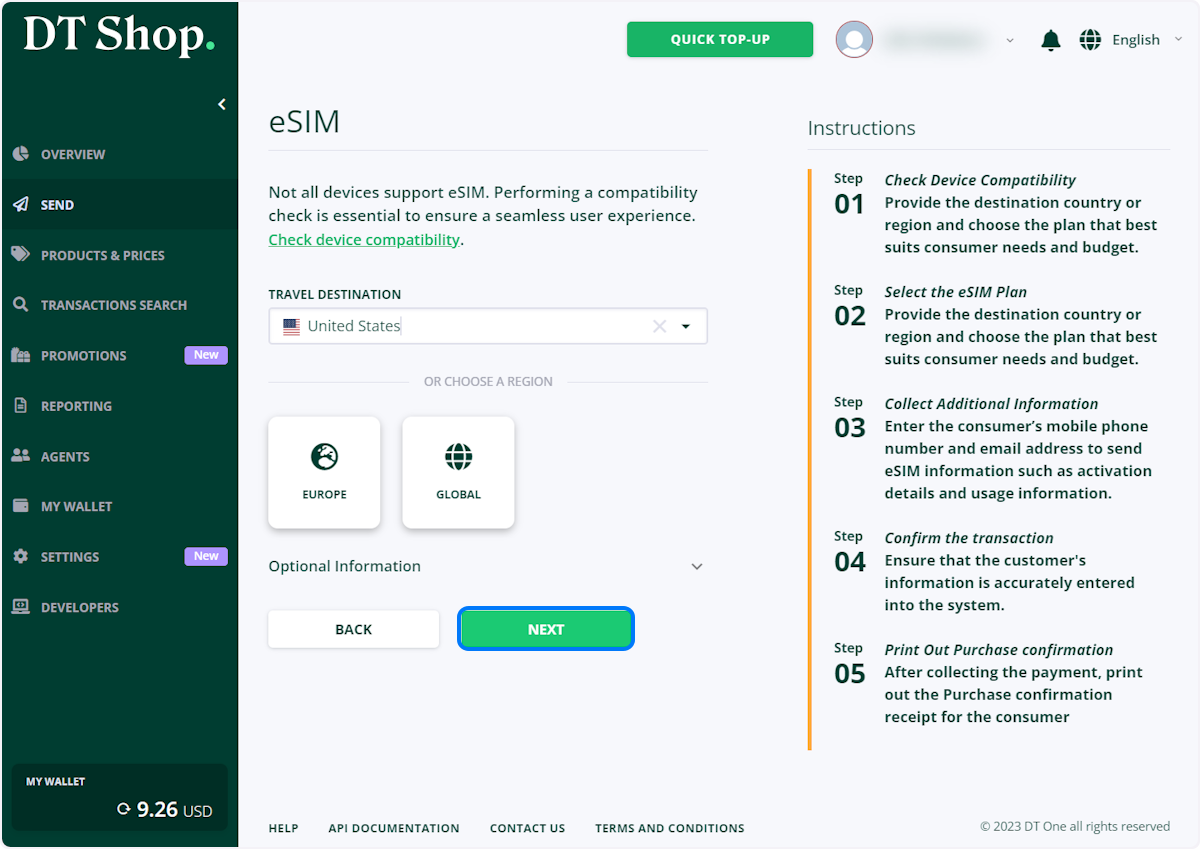
- Or Select Regional coverage and click NEXT
Alternatively to choosing one destination country, you can select an option with multiple-country coverage. This can be the EUROPE or GLOBAL regions.
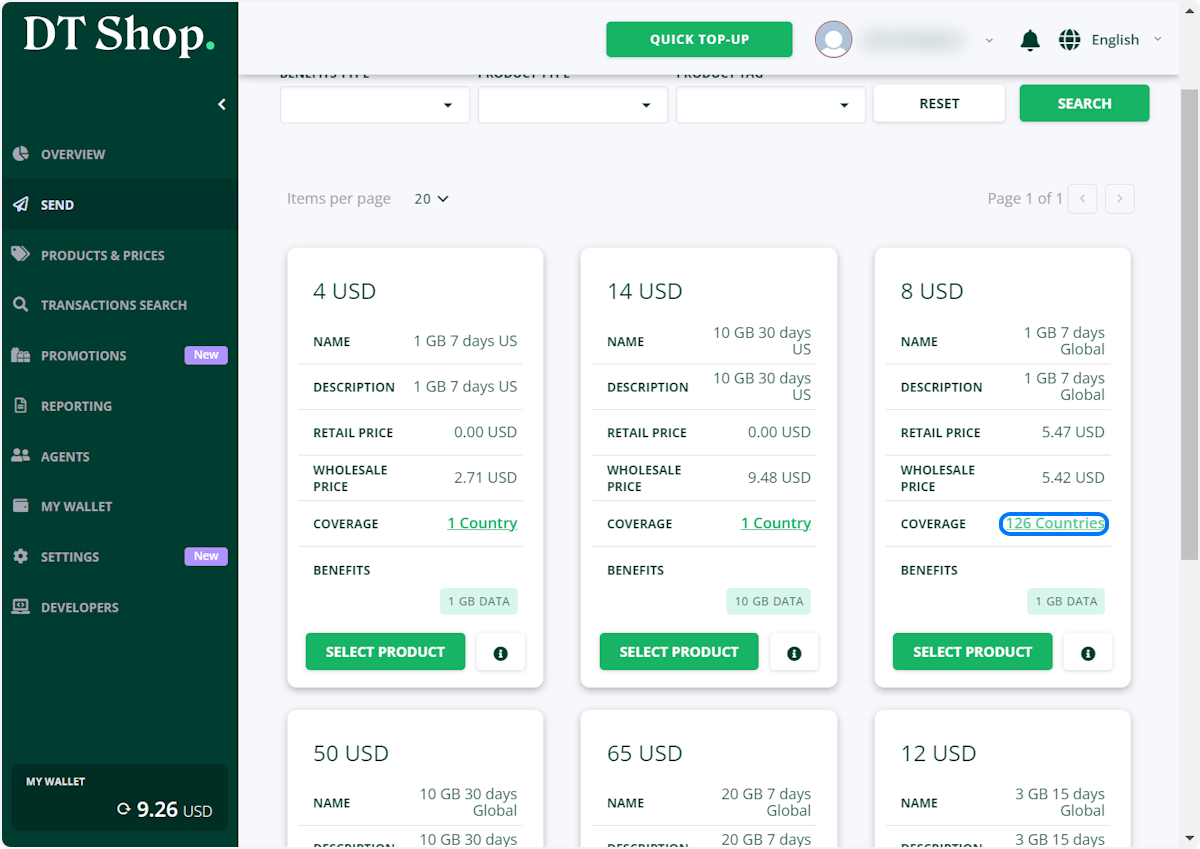
- Click on Coverage link to Understand the Coverage
DT Shop will show all the available plans suitable for the destination selection. If you selected a country in Destination, DT Shop will return single-country plans and all regional plans that cover this country as part of coverage. on the example below Global plan covers USA and 126 other countries
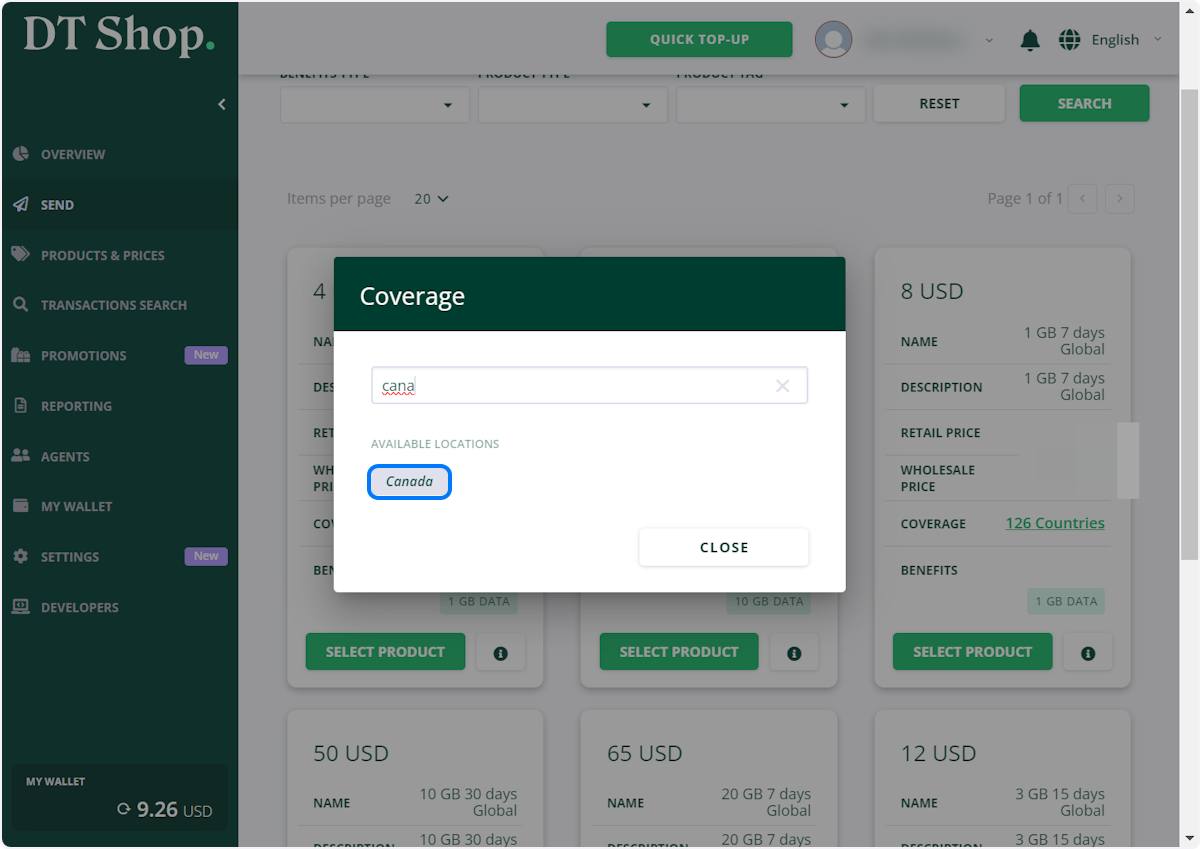
- Search for required Countries in Coverage
If you chose a plan with multiple countries, you can search countries to make sure that this plan covers required countries
-
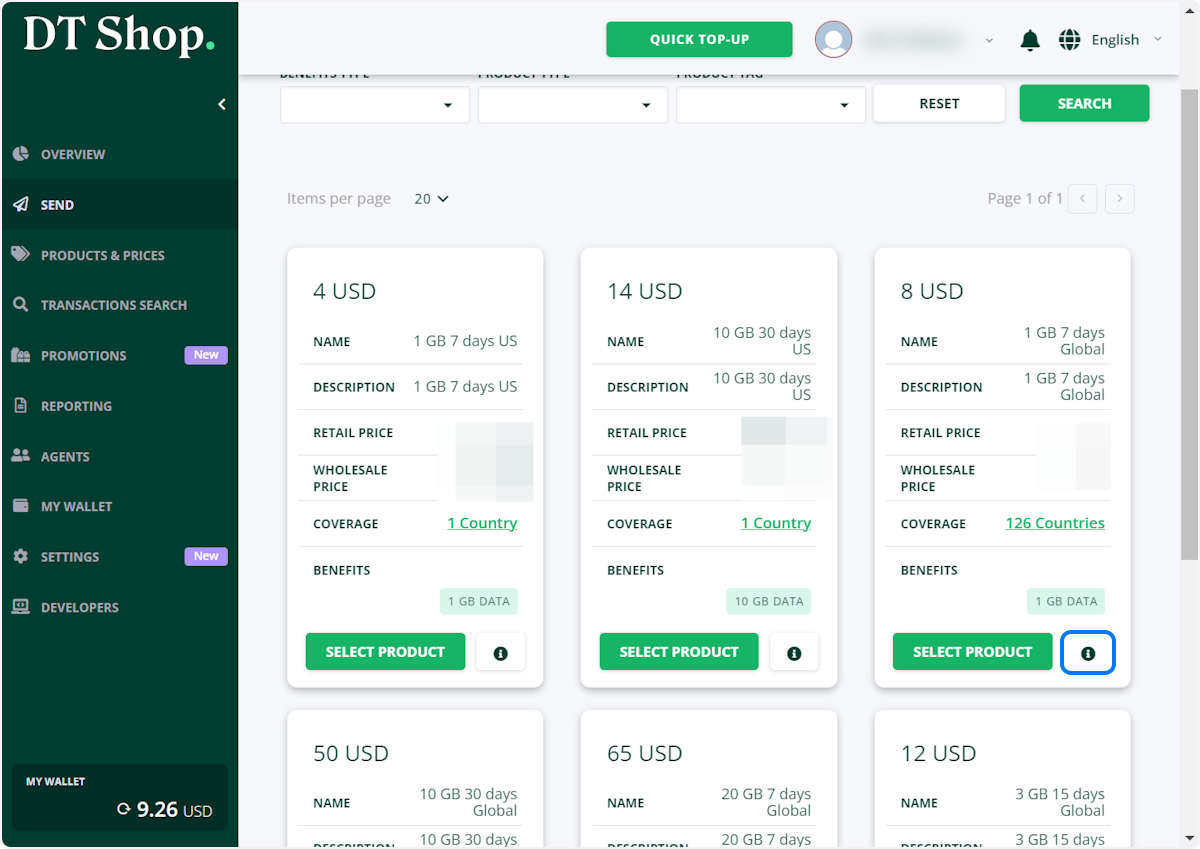
Click on "i" icon to check additional information if you need to.
-
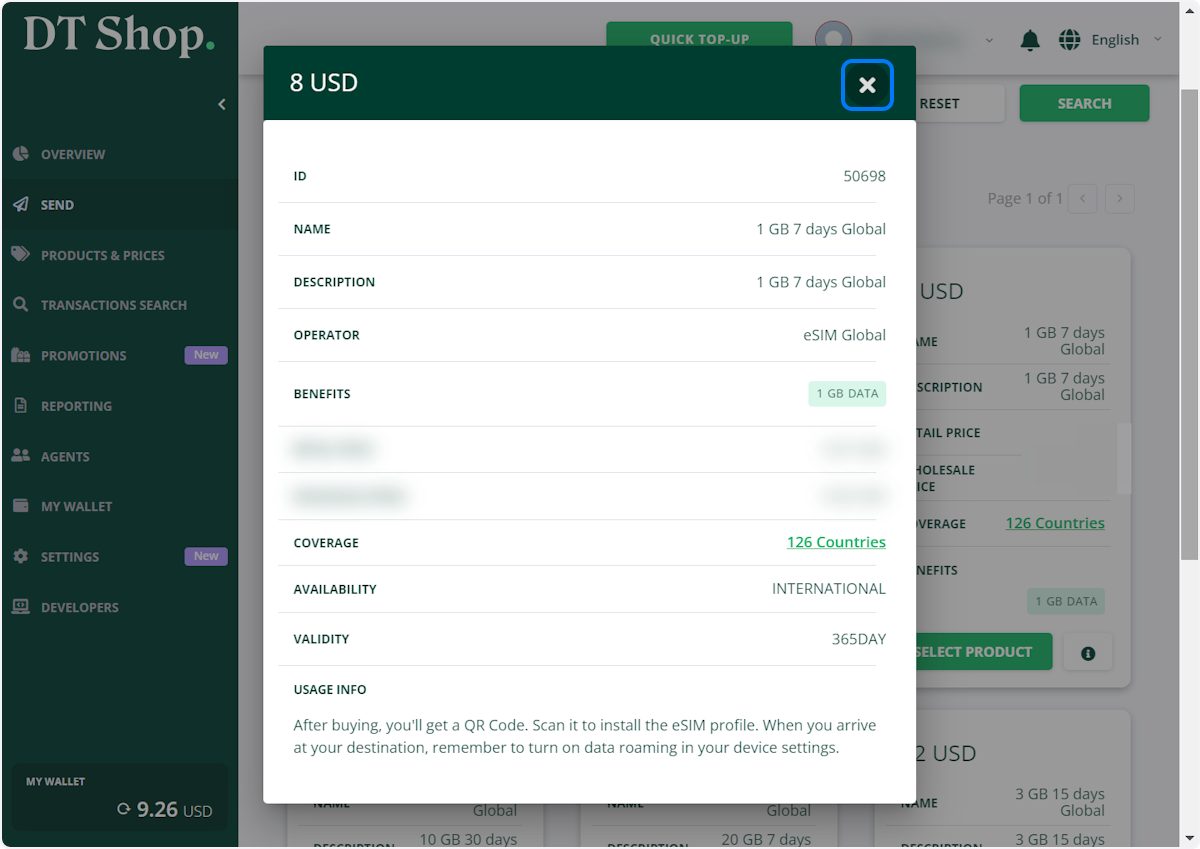
Read Additional information and make your product selection
Additional information contains Product Validity (how long will the product be valid after purchase), coverage, and other information
-
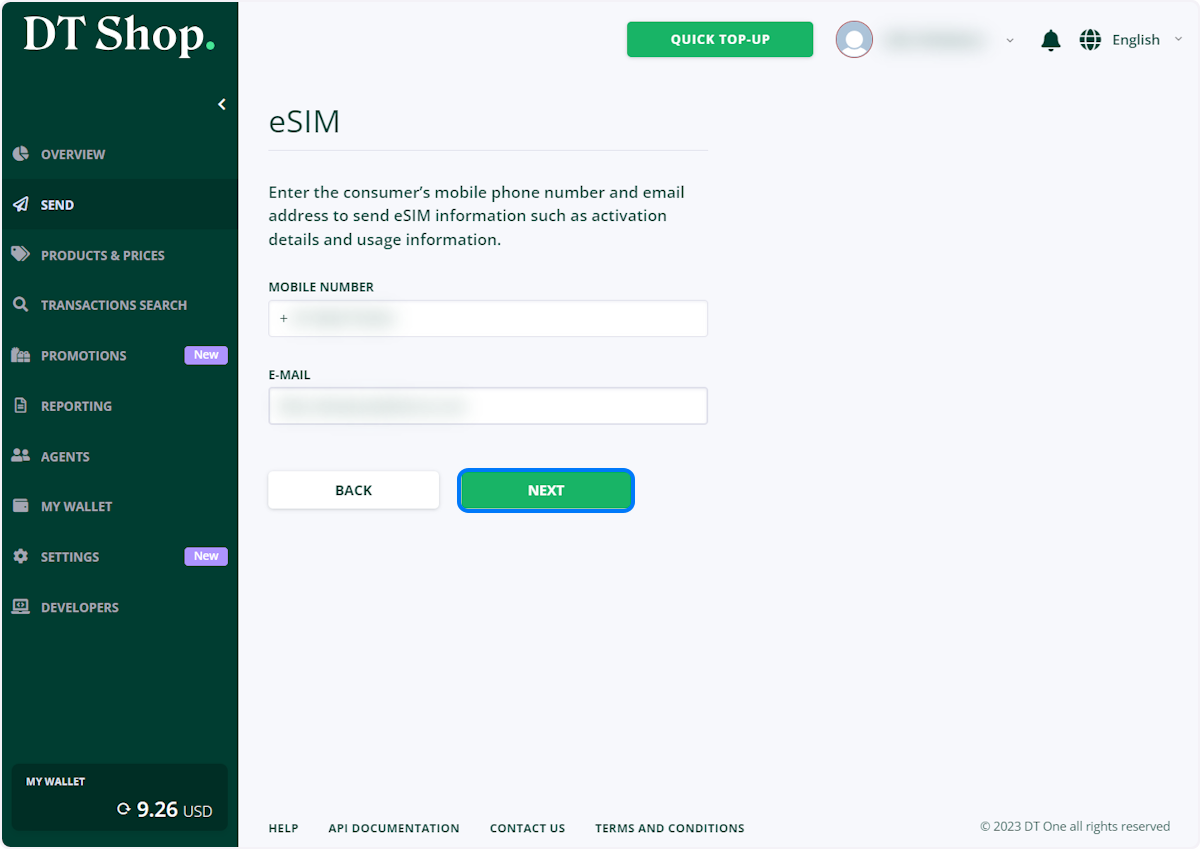
Enter consumer's email and mobile number, these fields are optional
-
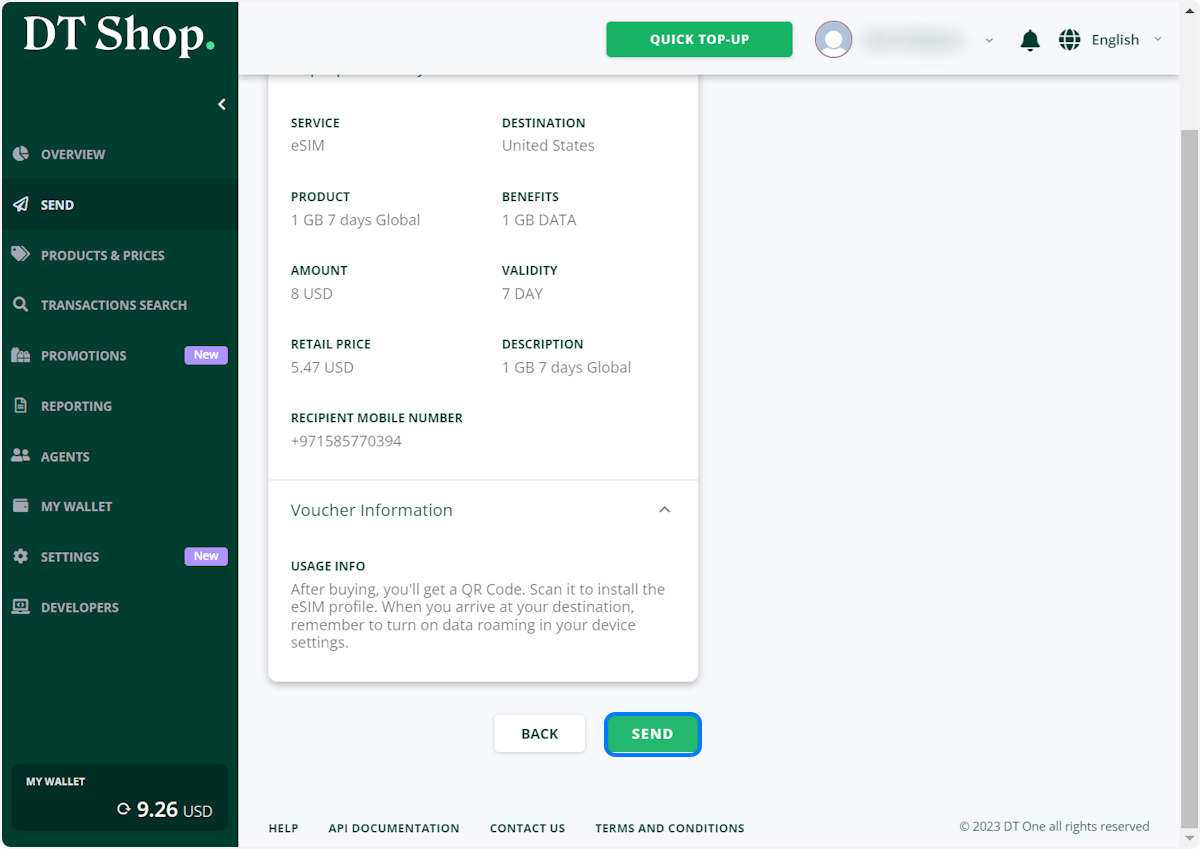
Submit the transaction by clicking on SEND
-
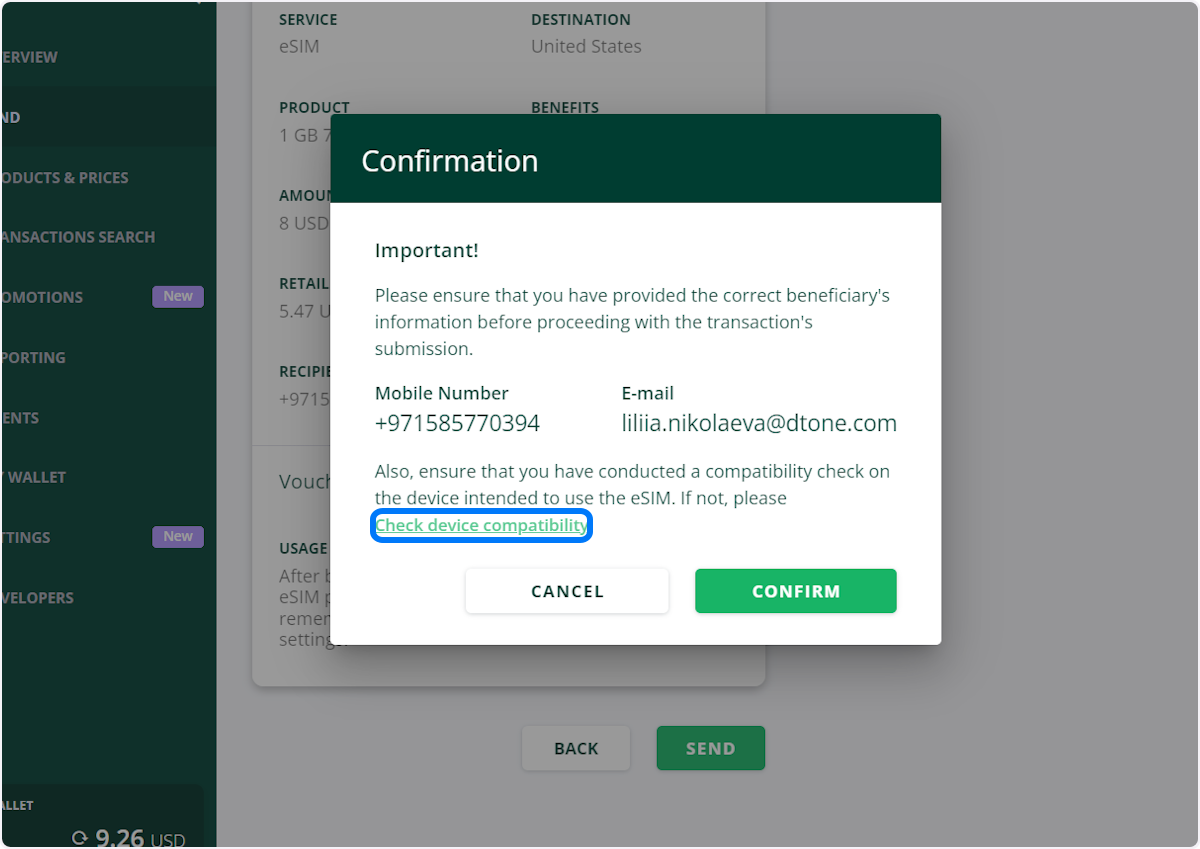
Check the device compatibility if you have not done this
Clicking on the link will open the list of all compatible devices
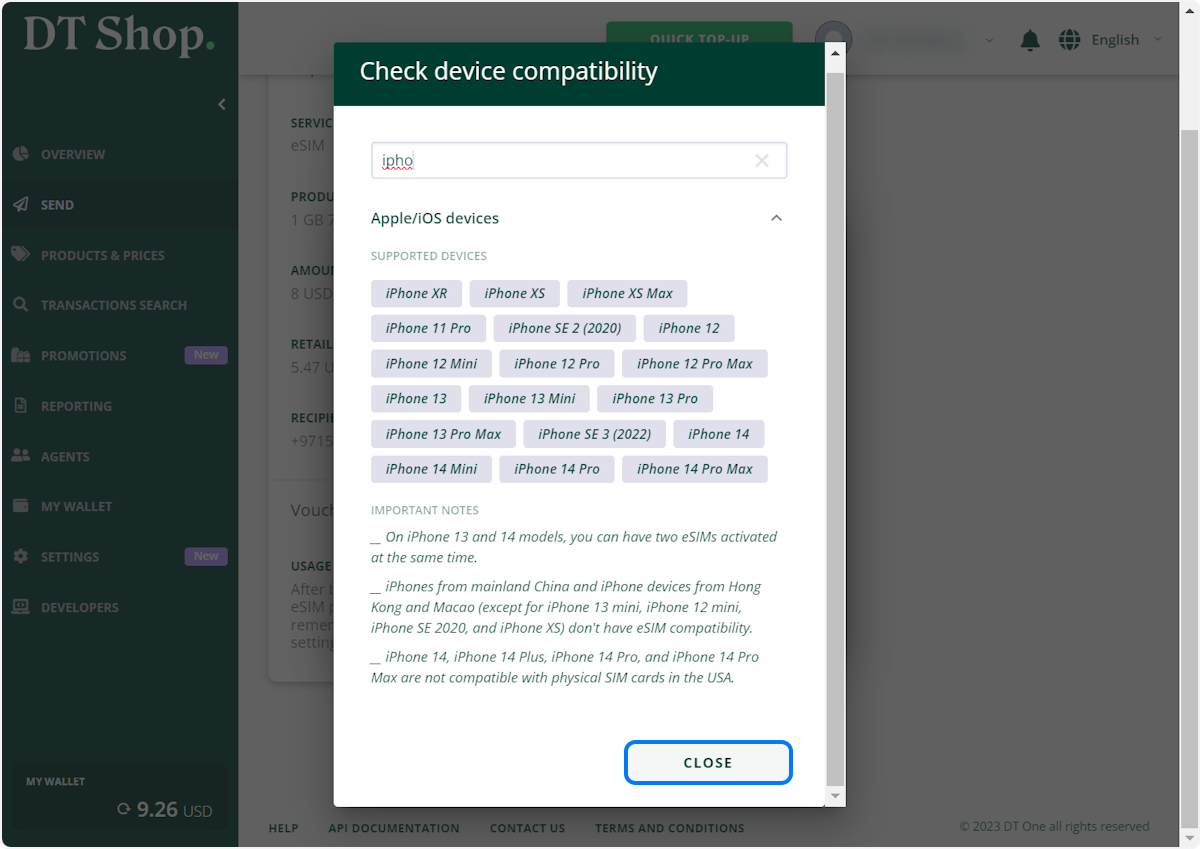
- Search for the device you wish to check
Start typing the device's name to reduce the list
-
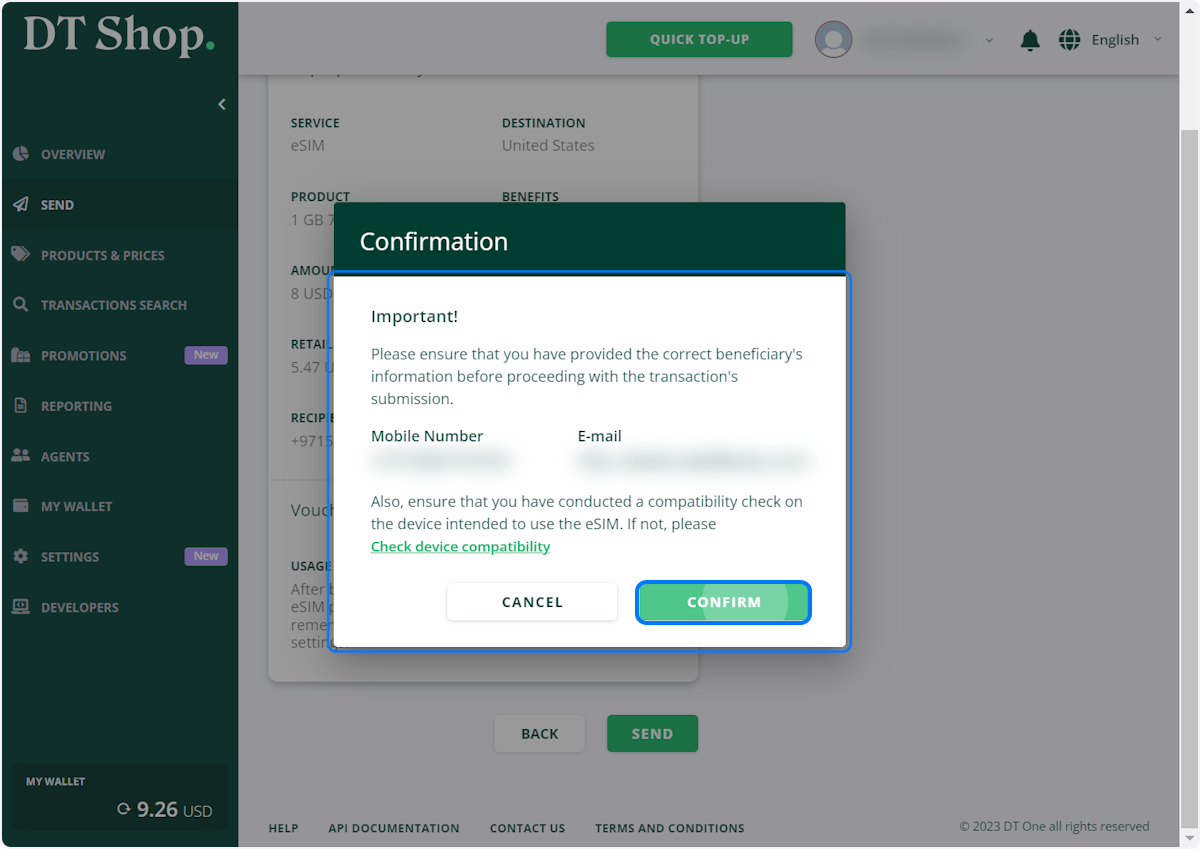
CONFIRM the transaction
-
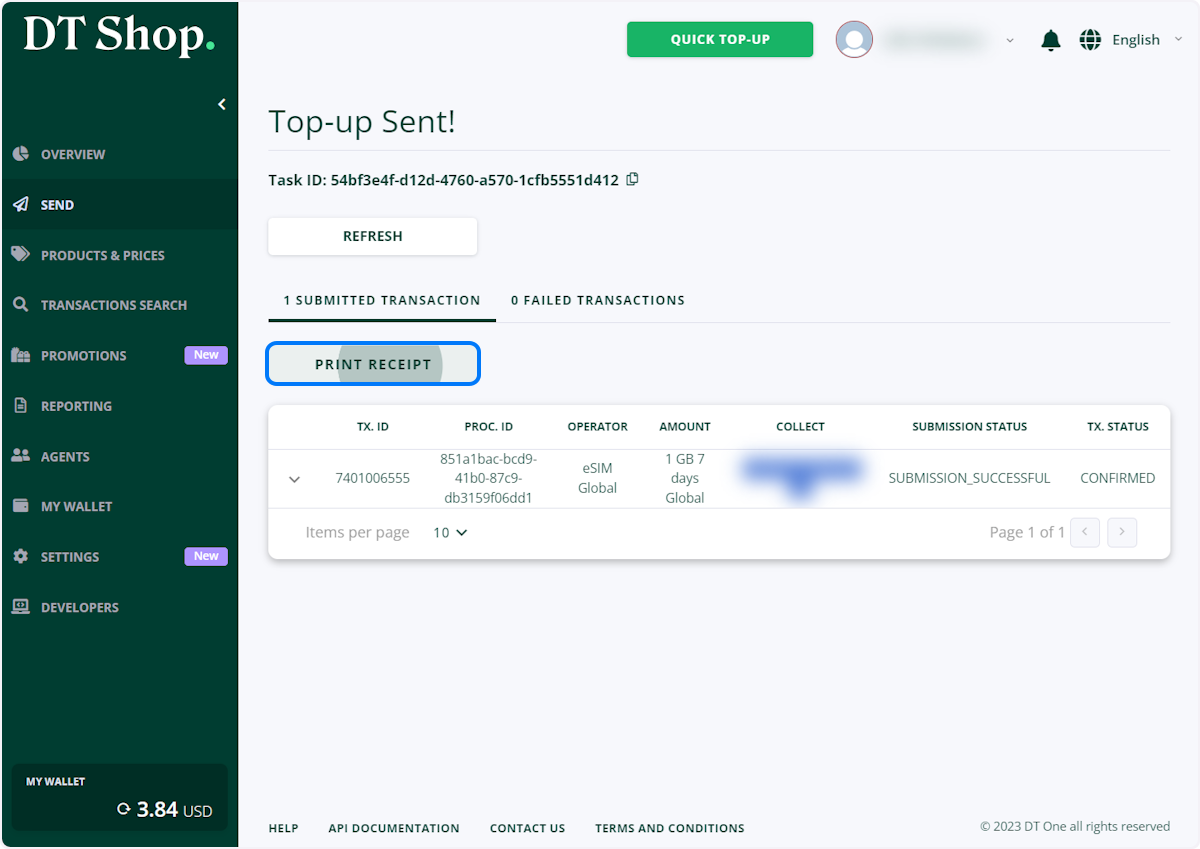
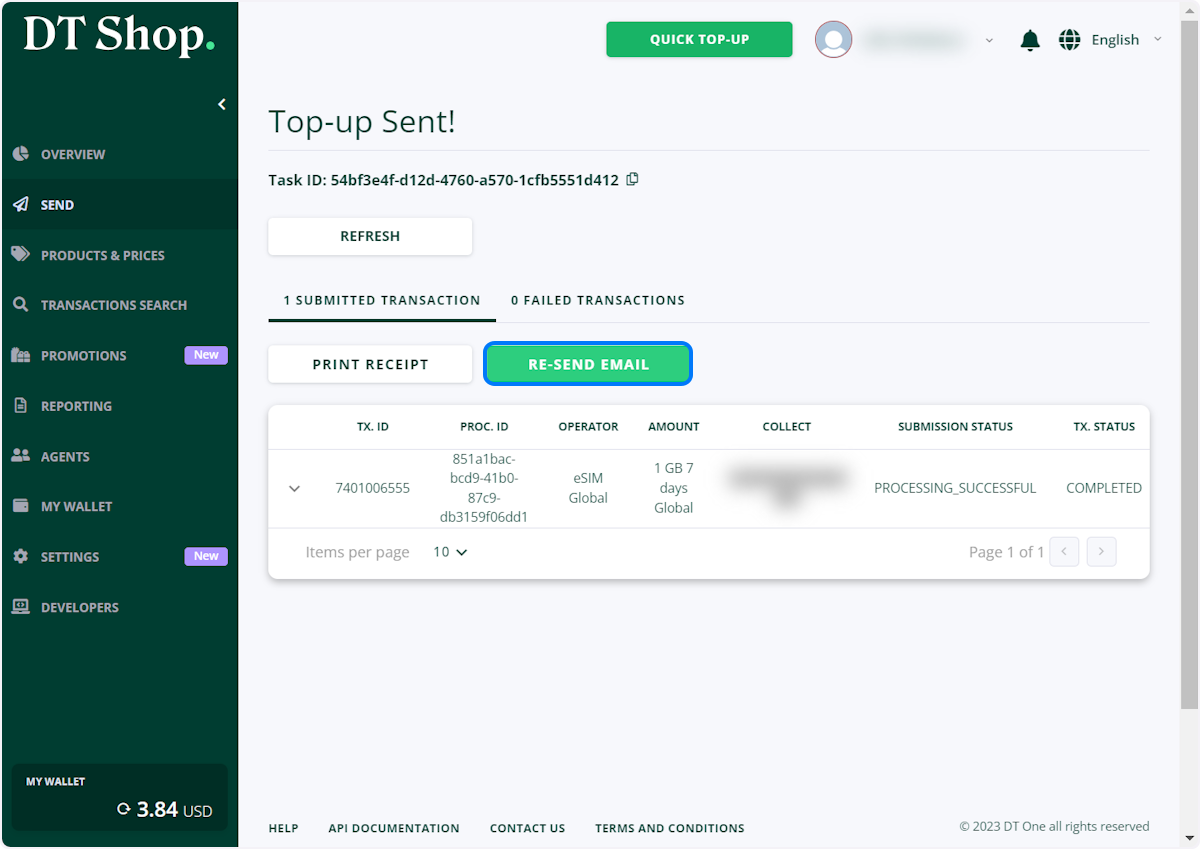
Print Receipt
-
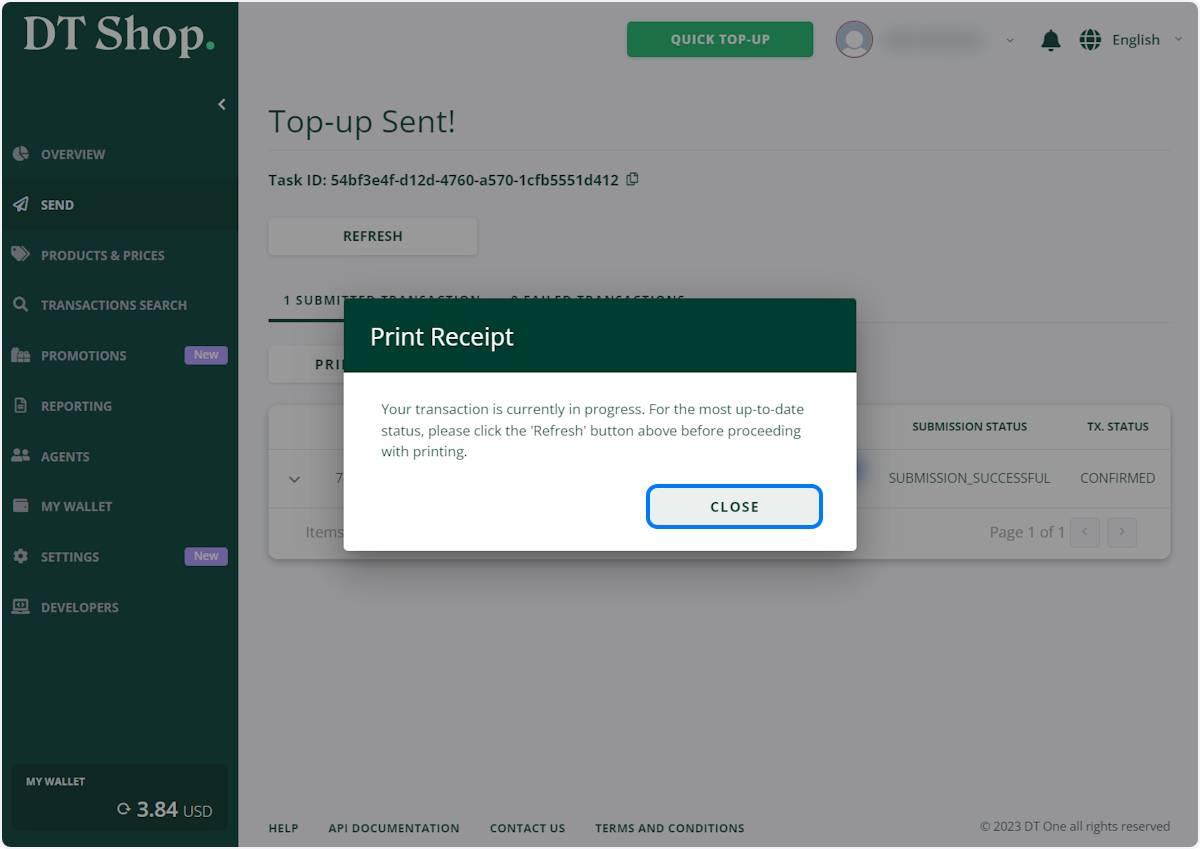
Refresh the page if needed
It takes up to 10 seconds to receive a response from the provider. You may need to refresh the page to be able to print out purchase confirmation
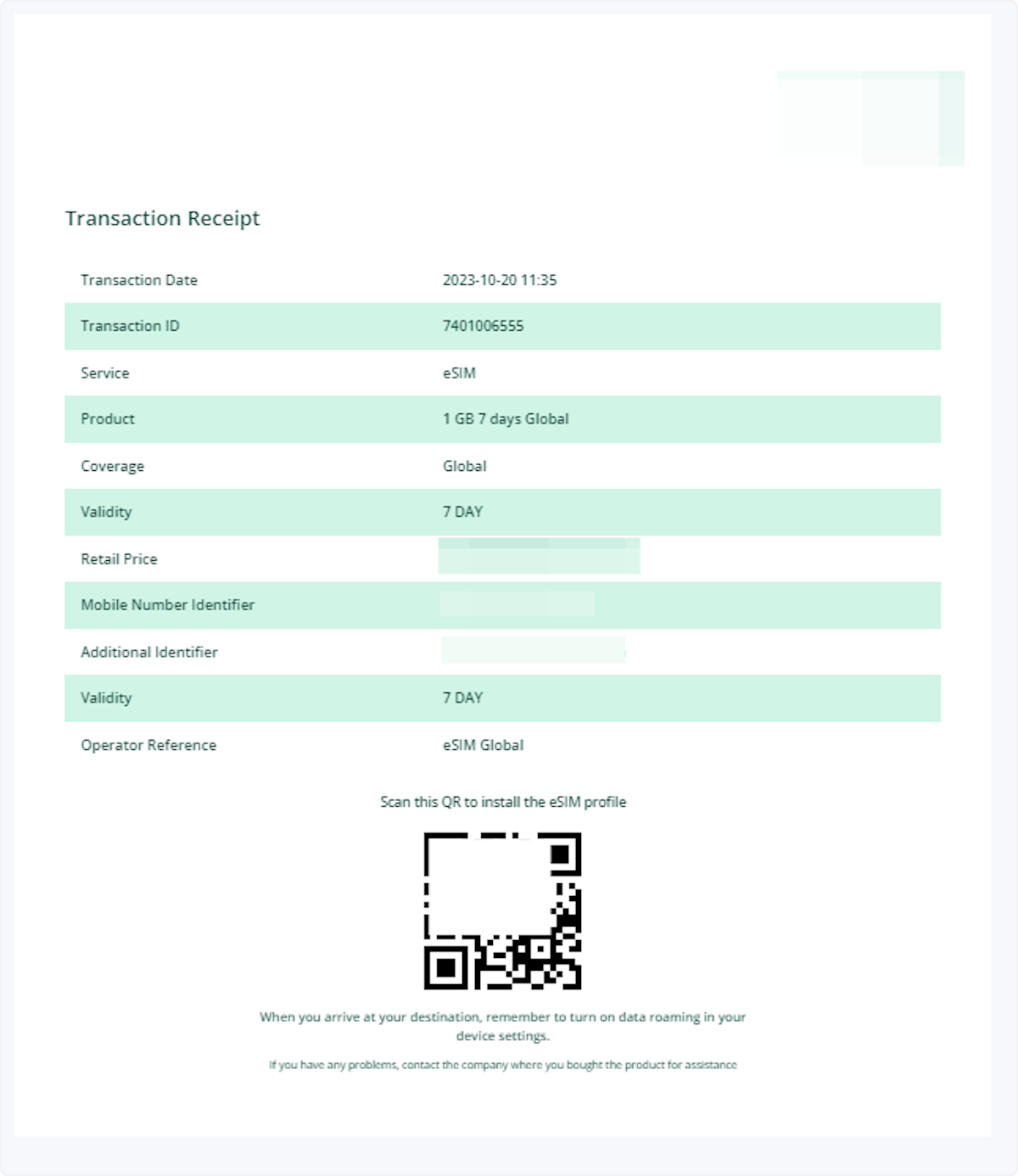
- Hand out printed Purchase Confirmation to your Customer
The same confirmation was also emailed to the email address provided earlier
-
Re-send email if required
-
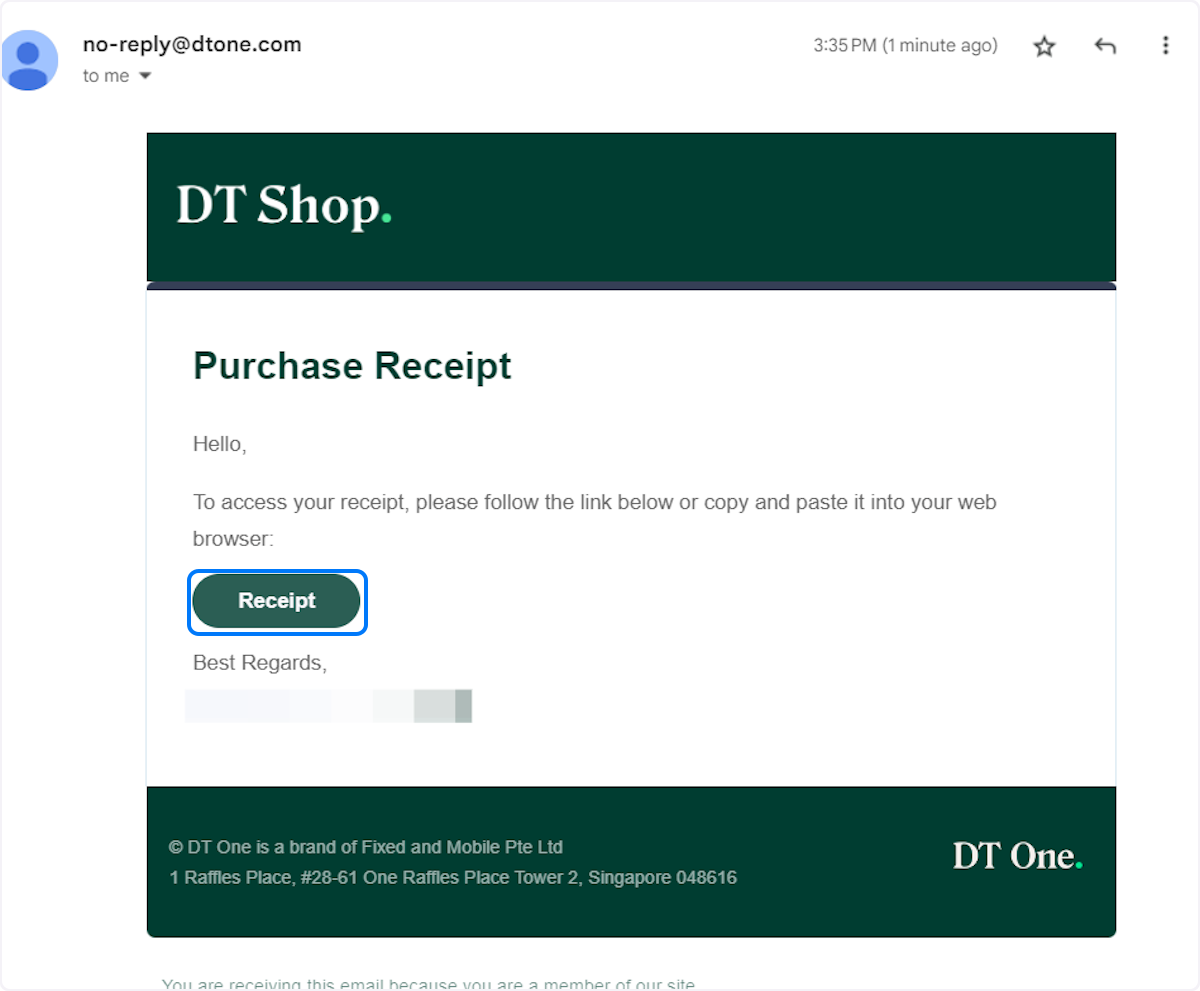
Purchase confirmation with QR code will be available after clicking the Receipt button on the e-mail
-
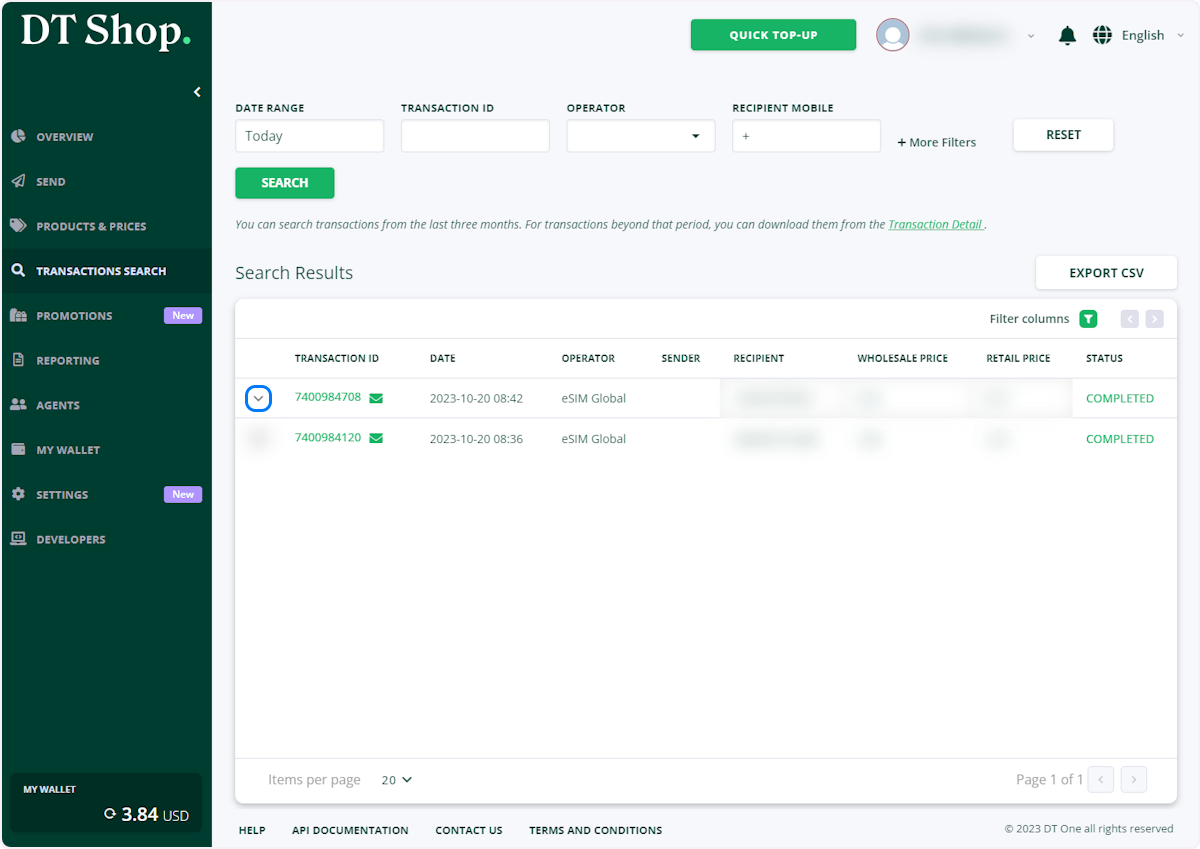
Search successful transaction
After successful submission your Transaction will be available in the Transaction Search section
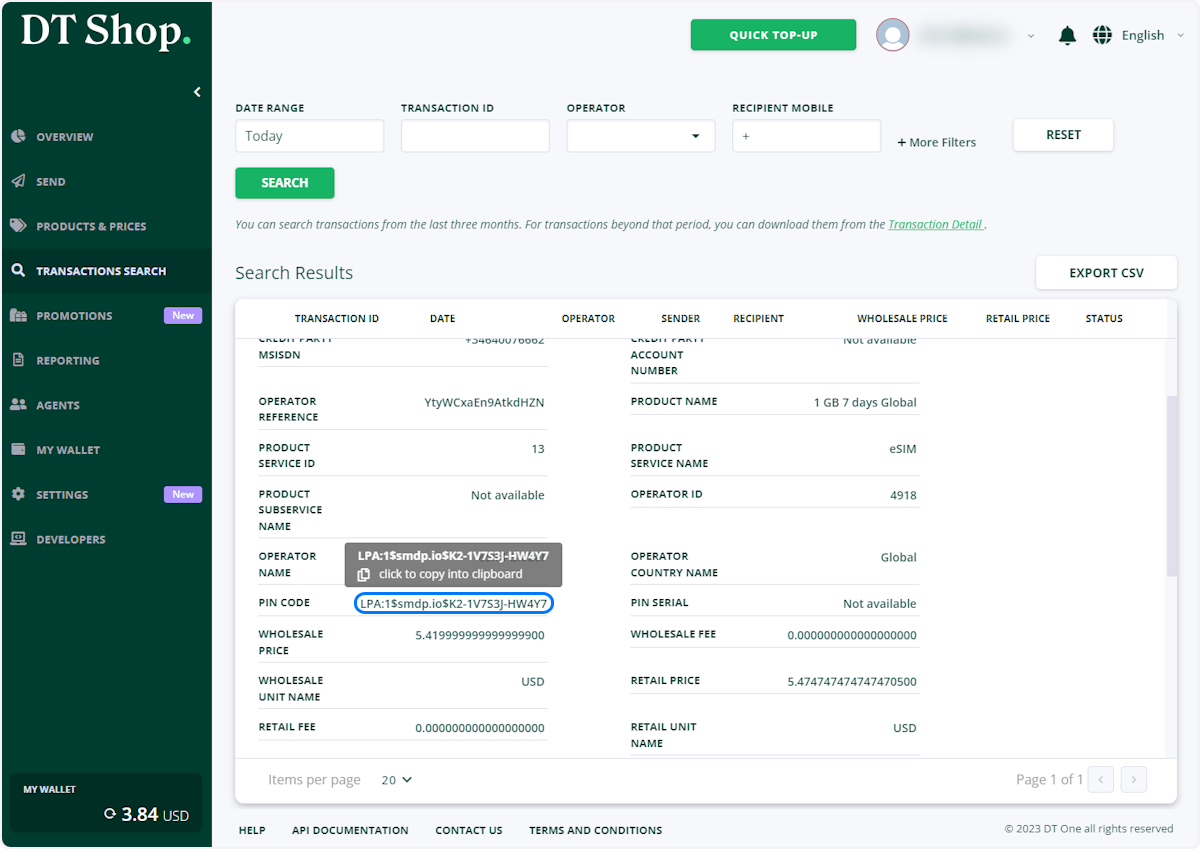
- Access full transaction details if needed
You can find the Operator reference and eSIM ID in the transaction details
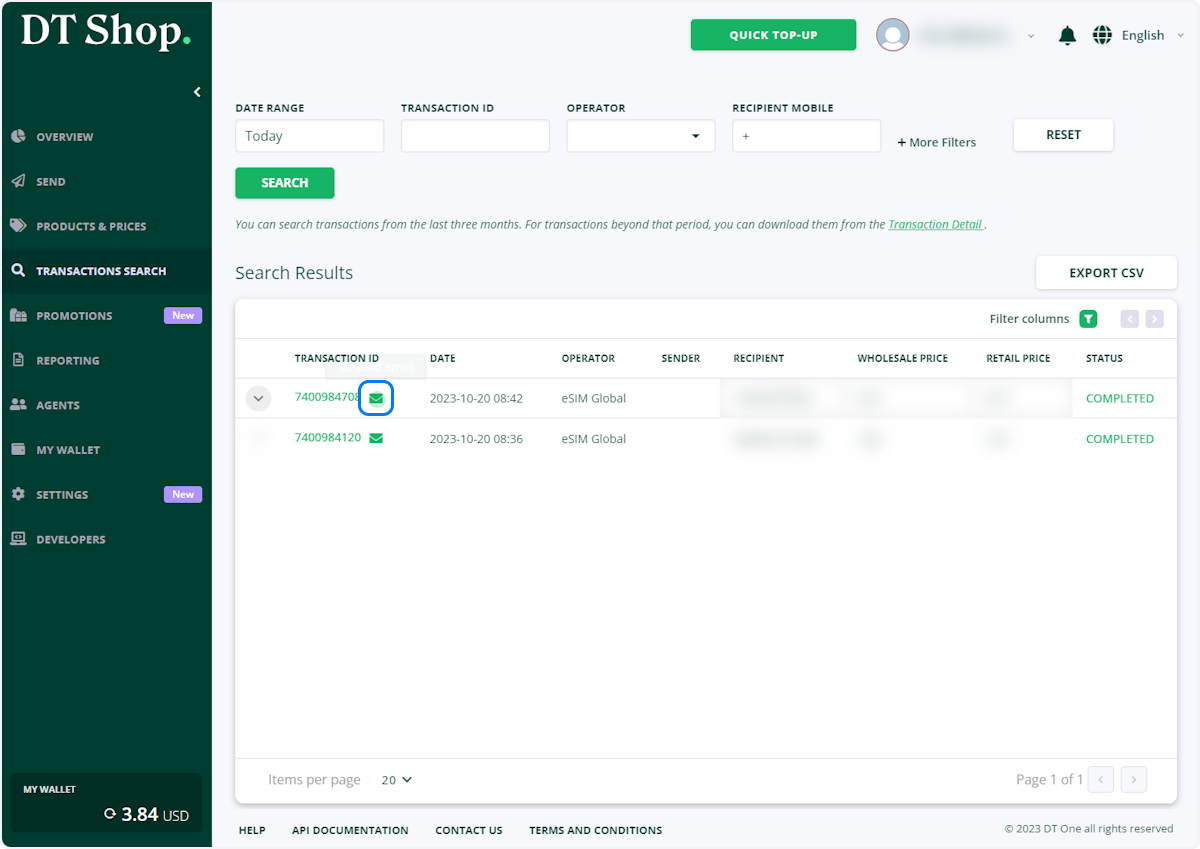
- Re-send email if needed
At any point in time re-sending the email is available in Transaction Search section
Updated 5 months ago